


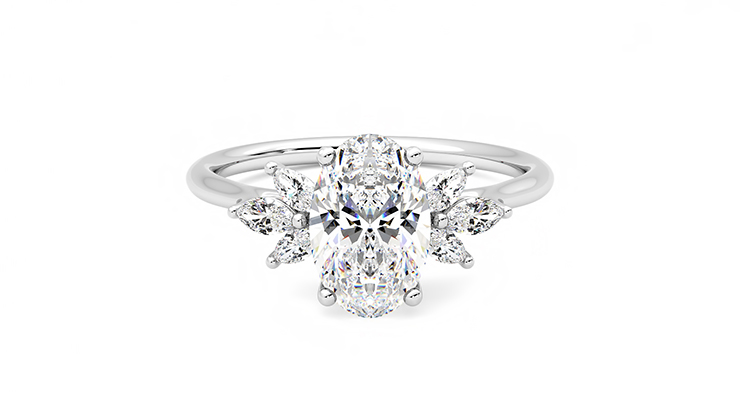
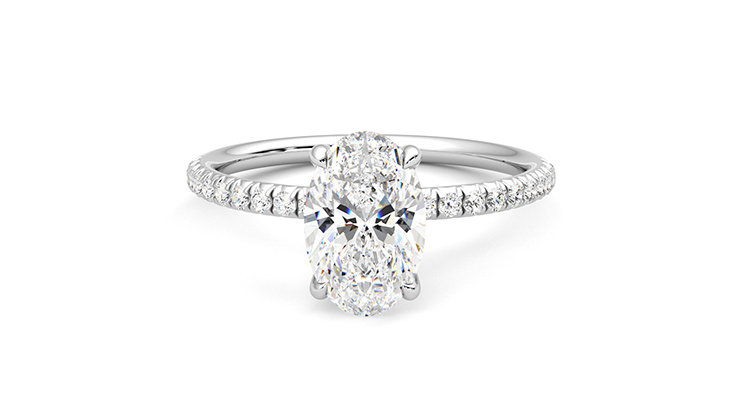
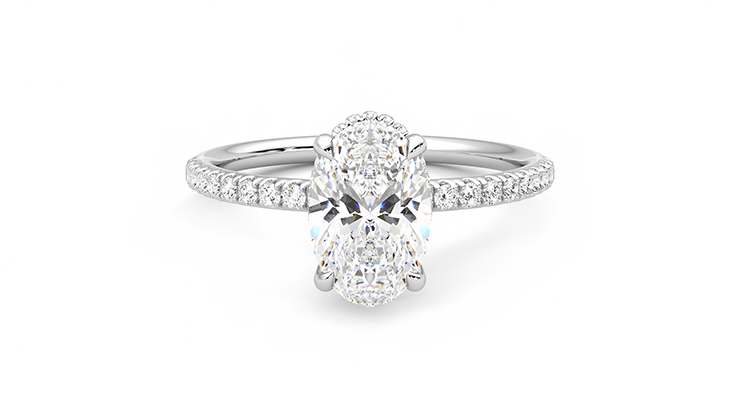
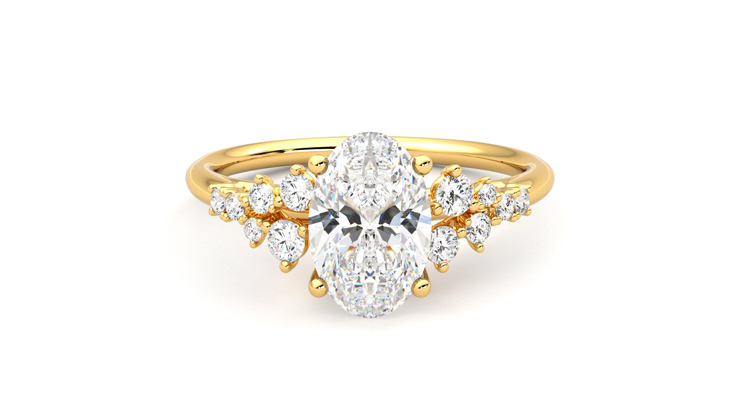







We specialise in designing unique engagement rings and wedding bands for all people. Say goodbye to daunting sales techniques and unclear processes, and say hello to human connection and advice that comes from the heart. We’re redefining the way you shop for bespoke jewellery, wedding rings and engagement rings in London, with a showroom located near Monument/Bank tube station. When it comes to a design experience without limits, we’ve got you covered.
We want to build a relationship that lasts. After all, love lives in the day to day, which is why we want to growing with you throughout your love story and to help you celebrate every one of life’s milestones. From hands-on service throughout the design process, to a complimentary two year warranty, our rings are made to last and made for love.
Our team of artisans and experts break down the conventions of the jewellery industry so that you can find a ring that truly expresses the essence of your relationship. Myths and trends about what you should wear on your finger? Not our style. Instead, we’ll offer you design tips and full transparency about the cost of engagement rings.
We also offer a complimentary re-sizing service to our UK customers to ensure the perfect fit and a 90 day returns policy on rings for your peace of mind. For better or worse, love can be nerve racking! But finding a one-of-a-kind engagement ring doesn’t have to be.
Just as we all love in our own ways, we’ve created a diverse range of shopping experiences to suit your needs. With showrooms in London and New York, and virtual consultations available from the comfort of your home, let’s connect no matter where you are in the world.
Plus, all of our diamonds and gemstones are ethically-sourced using Gemological Institute of America (GIA) certification. Why? Because we want you to grow old with your engagement ring knowing that it was born out of a commitment to building a better future for everyone.
When you experience true love, you know it and you feel it. If love isn’t worth making an effort for, what is?